How to Make a Birthday E-Card: An Animated Birthday Card Made on Your Phone (Step by Step)
Make an animated birthday e-card on your phone: they blow out the candles, scratch off your last line, and hear you sing Happy Birthday. 6 steps with app screenshots, and they open it on an iPhone with one tap.
Want to send a birthday e-card that isn't just another image made from a template? The quickest way is to make an animated birthday e-card on your phone: when they open it, they blow out candles by breathing on the screen, scroll back through your year together, hear you sing Happy Birthday in your own voice, and finally scratch off the one thing you most want to say.
This guide walks through it with Surprise, an iPhone app for making animated, interactive e-cards. A card is made up of several pages; when it's done you get a six-character code, and they open the card on their iPhone by tapping a link, with no app to download first. The whole thing takes about 15 to 30 minutes, and most of that is choosing photos and deciding what to write.
How an animated birthday e-card differs from a regular birthday picture
A regular birthday picture is something they look at; an animated birthday e-card is something they unwrap. A picture gets opened, glanced at, and closed. An animated e-card has several pages, and each one asks them to do one small thing before the next one appears.
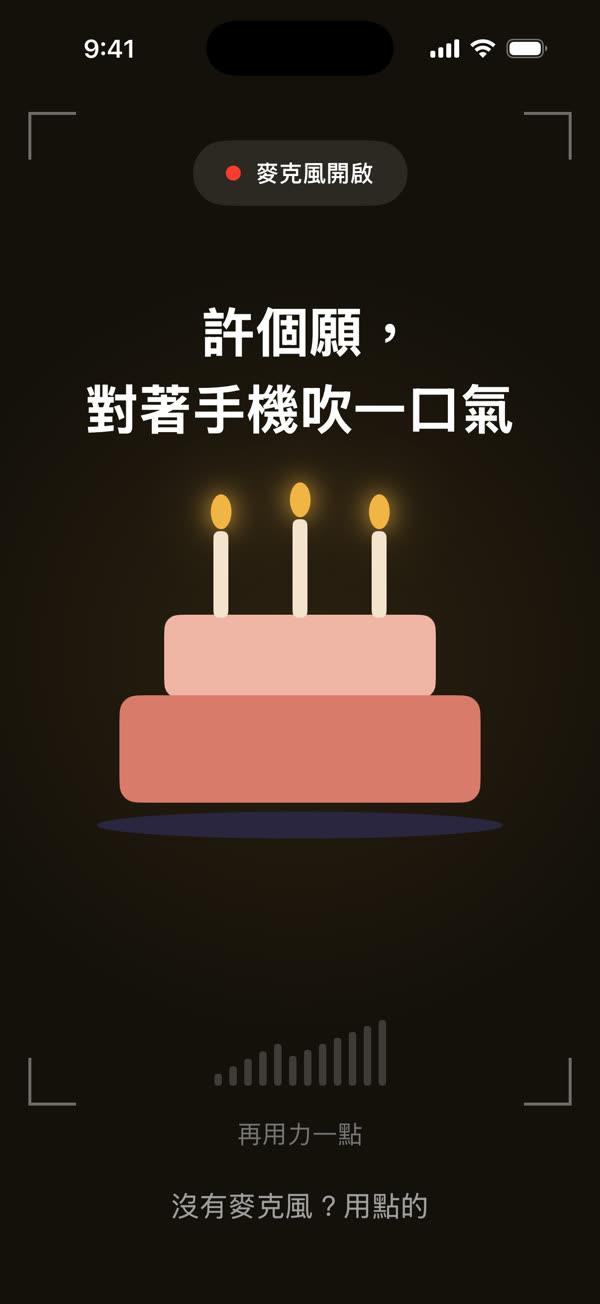
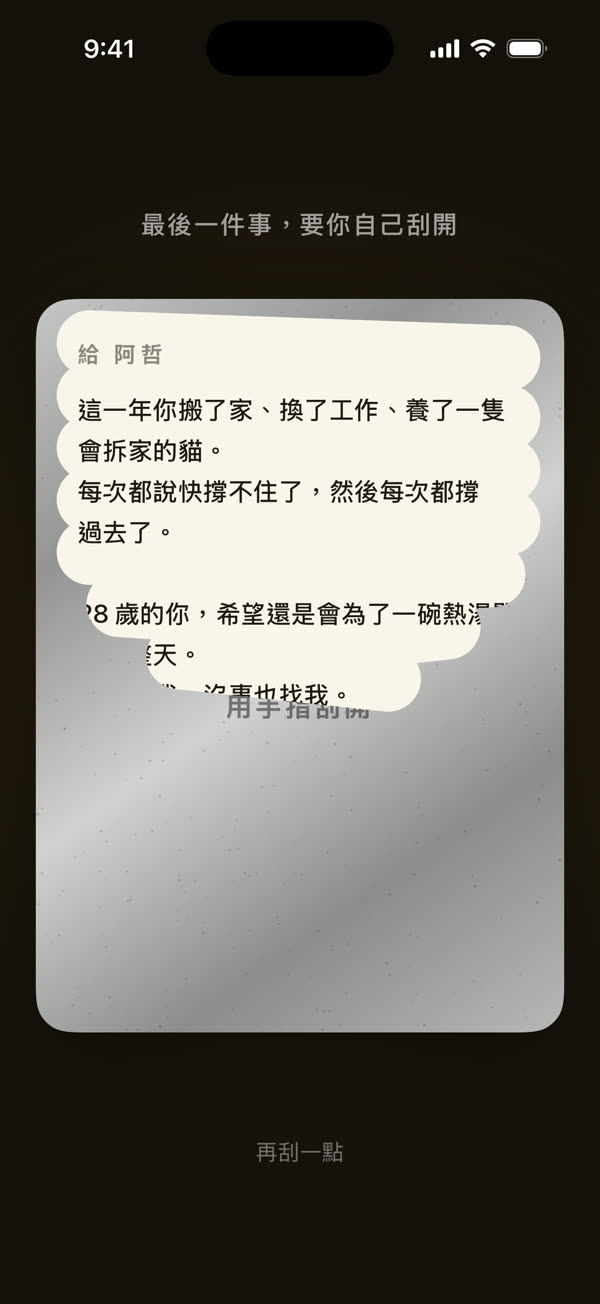
| Regular birthday picture | Animated birthday e-card | |
|---|---|---|
| How it opens | Tap and glance | Unwrapped page by page, one small action each |
| What's inside | One image, one wish | Photos, words, your voice, messages from friends |
| When it opens | As soon as you send it | Can be set to open at midnight on their birthday |
| What they need | Nothing | An iPhone, no app download |
Before you make the card, get these three things ready
Having your photos, your friends' messages, and your final line ready before you start makes the whole thing much faster:
- 5 to 10 photos: photos from your year together, each with a line in mind (where you were, what happened that day).
- A line from each friend: if you want a "Messages from everyone" page, quietly ask their friends to send you a sentence or two.
- The last thing you want to say: the line hidden under the scratch card. It can be something you'd never quite manage to say out loud.
Step 1: Create a card and fill in who it's for and who it's from
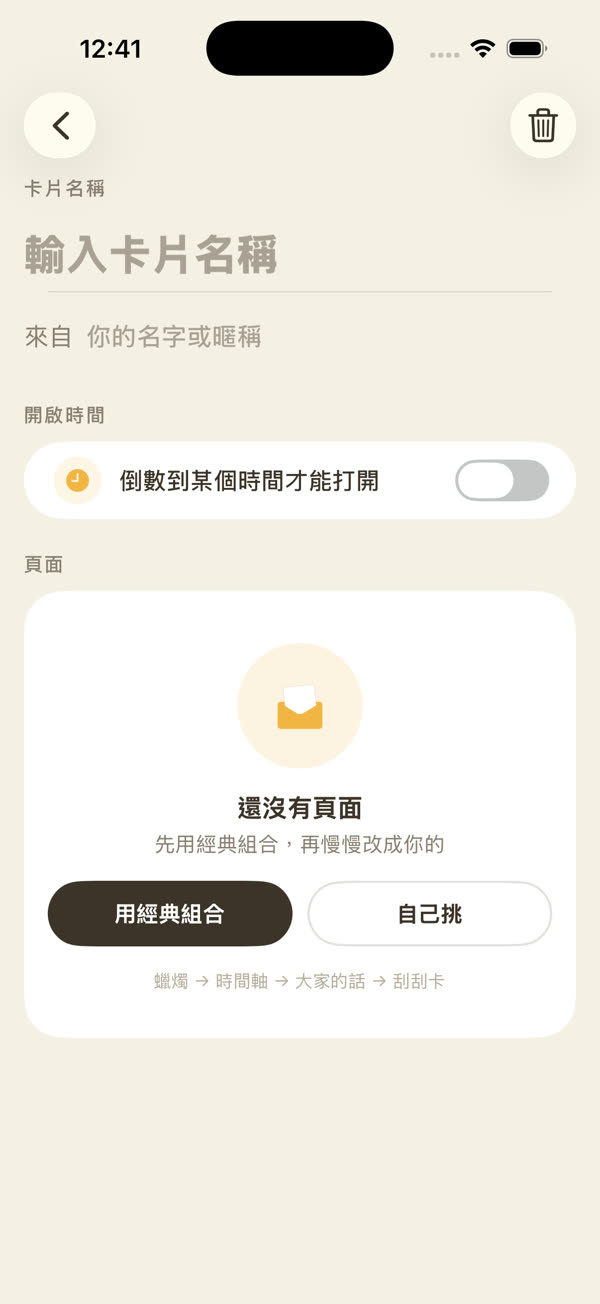
First, go to the Studio in Surprise, tap "New card", and fill in the card name and your name. The card name might be "Happy 30th Birthday, A-Kai", and "From" is your name. Both are required, because they're the first thing they see when they open it.
If the card has no pages yet, tap "Use the classic set" to add four pages at once (Candles, Timeline, Messages from everyone, and Scratch card), then add or remove pages from there.
Step 2: Set the opening time (so it opens at midnight on their birthday)
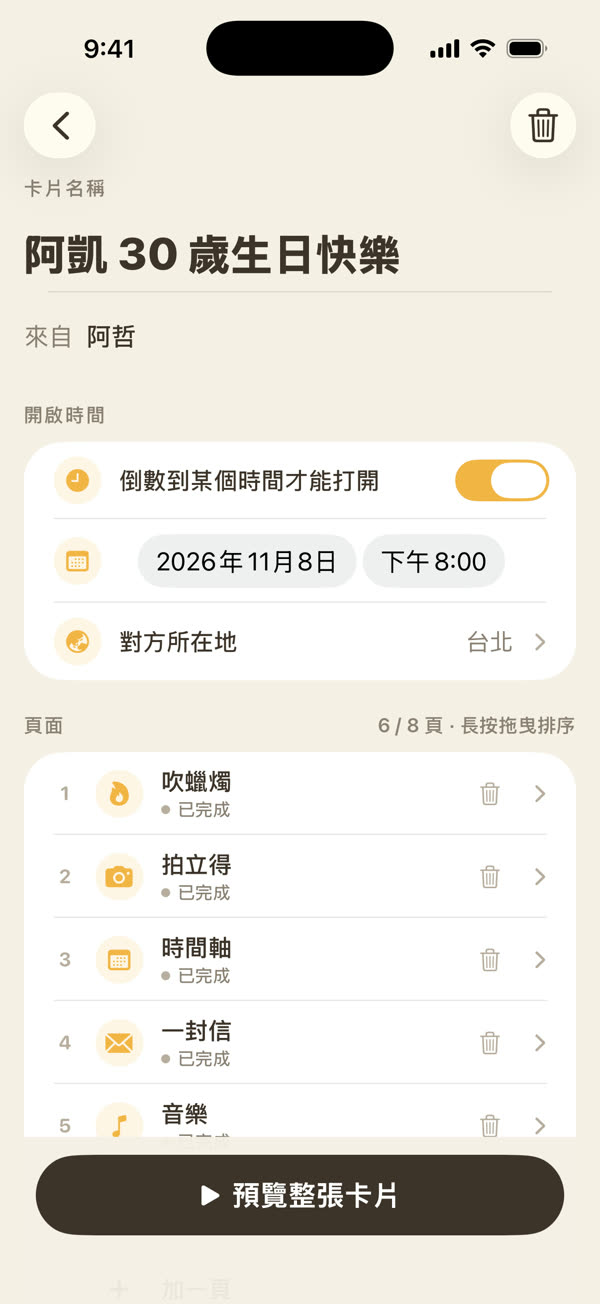
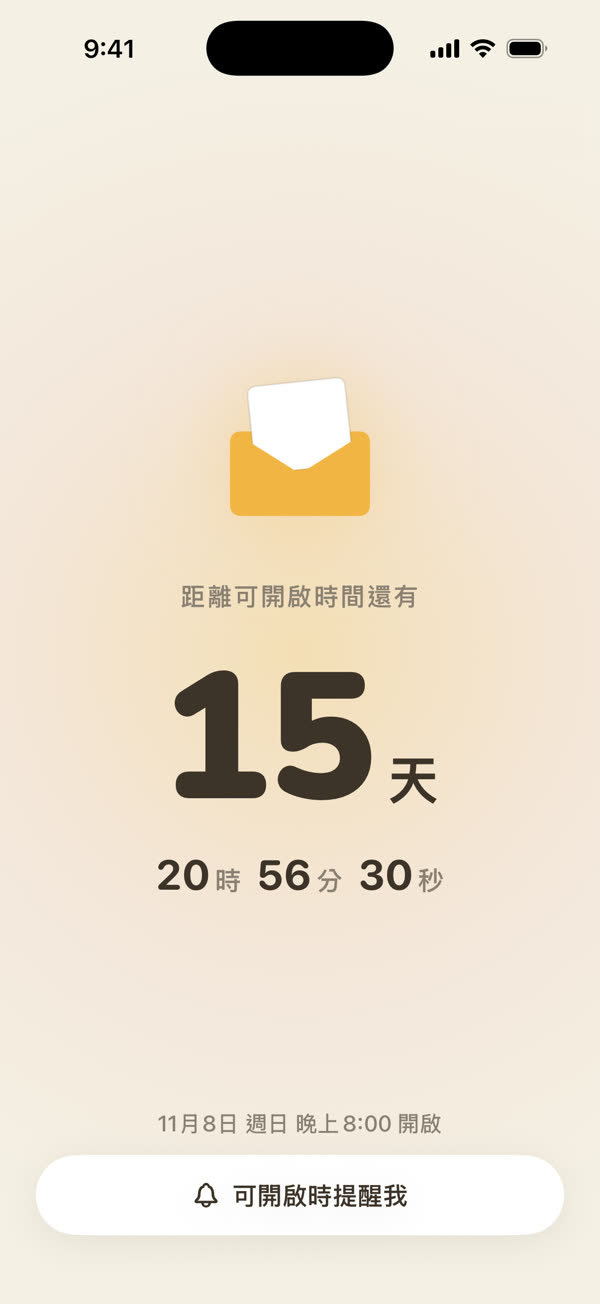
To make the card open only at midnight on their birthday, turn on "Opens only after a set time" in the editor and pick the date and time. If they live in another city or country, choose their city under "Their location"; the time then follows their clock, so you don't have to work out the time difference yourself.
Until the time arrives, tapping the link shows them an envelope and a countdown, and they can tap "Remind me when it opens" to get a notification when it's ready. Send it a few days early and let it unlock at midnight: the waiting is part of the surprise. If they're far away, see "How to Plan a Long-Distance Birthday Surprise: 9 Ideas to Make Your Partner Feel Loved from Miles Away".
Step 3: Pick pages from the page store
The content of the card is chosen page by page from the page store. Tap "+ Add a page" to open it. Pages are grouped by category, and you can tap any of them to see exactly how it looks before tapping "Add this page". Each one also tells you what you'll need to prepare (the Timeline, for example, needs photos and the month and year for each).
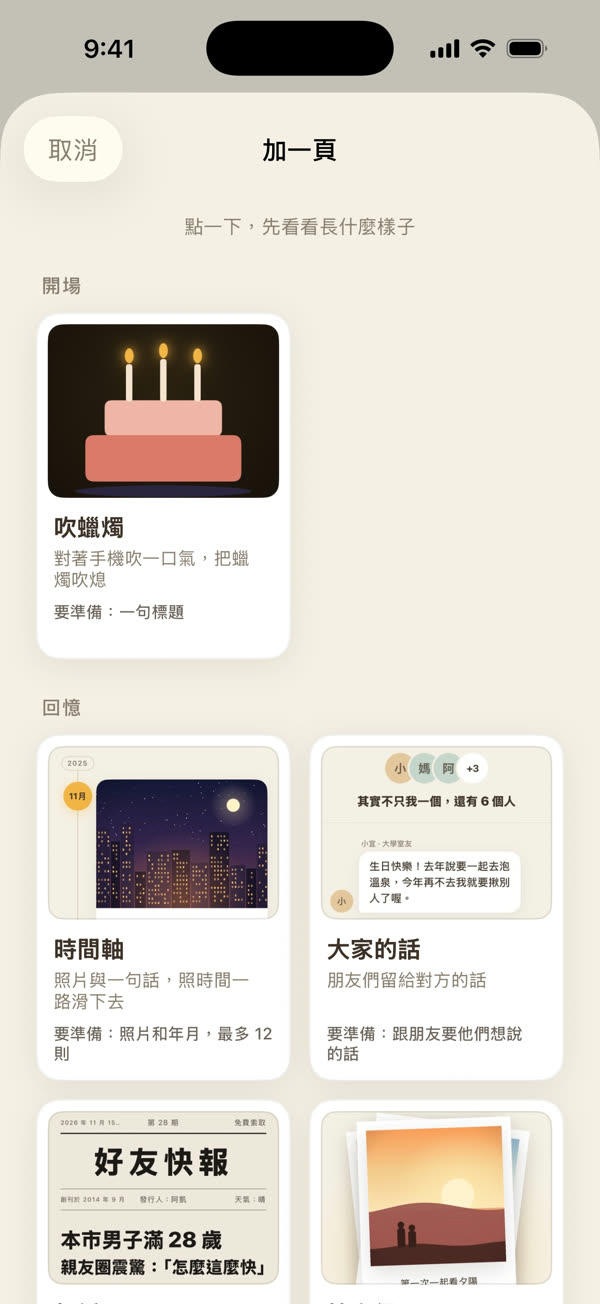
The six pages people use most in birthday cards:
| Page | What they do | Good for |
|---|---|---|
| Candles | Blow on the phone | The opening, making a wish |
| Timeline | Scroll down | Photos from your year, up to 12 moments |
| Messages from everyone | Read down the page | Wishes from friends, up to 7 people |
| Music | Tap play | A song you sing yourself, with the lyrics lighting up |
| Letter | Hold the wax seal to open it | Something longer you want to say |
| Scratch card | Scratch with a finger | The ending, the line that matters most |
A card can have up to 8 pages, and 4 to 5 is usually just right for a birthday card: every page asks them to do something, and too many gets tiring.
Step 4: Fill in the content and set the order
Tap a page in the list to fill it in, and press and drag to reorder. A few tips for a better birthday card:
- Make each Timeline line specific: "The day you swore you'd never hike again" beats "So much fun!" by a mile. Moments are sorted by month and year automatically.
- Record the Music page right in the app: up to 30 seconds, with up to 6 lines of lyrics. Once you're done recording, the app lines up each lyric with the right moment, so you don't have to tap along while you sing.
- Go "opening, memories, voice, ending": Candles → Timeline, Messages from everyone → Music → Scratch card is the most common order, and the one that flows best.
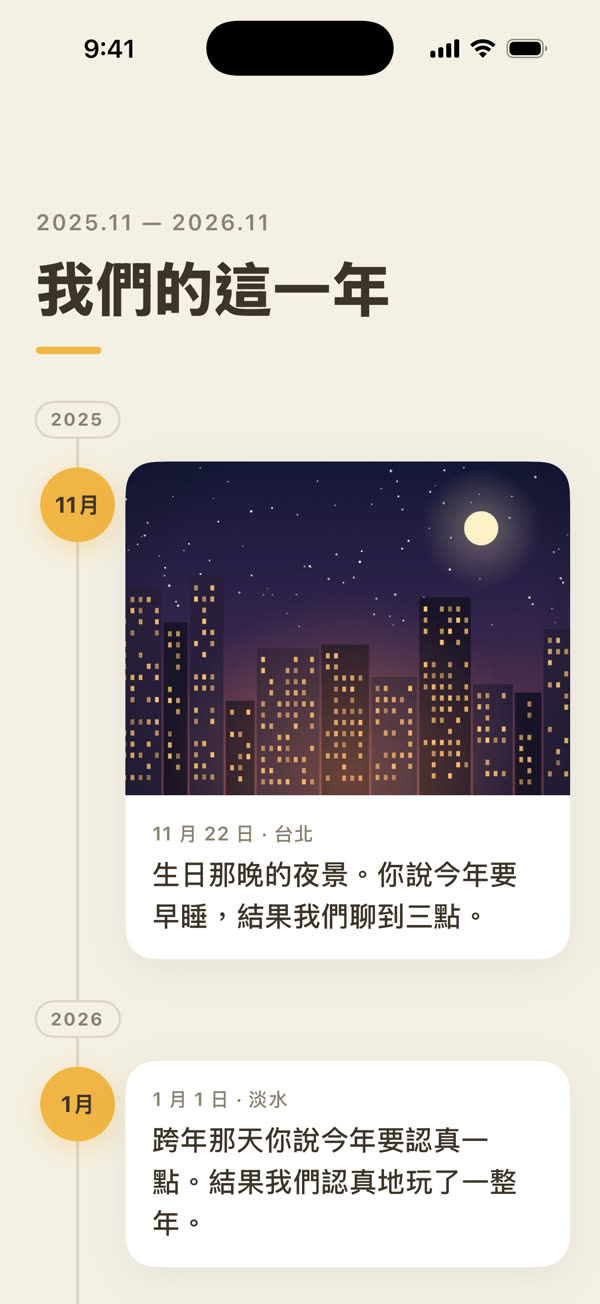
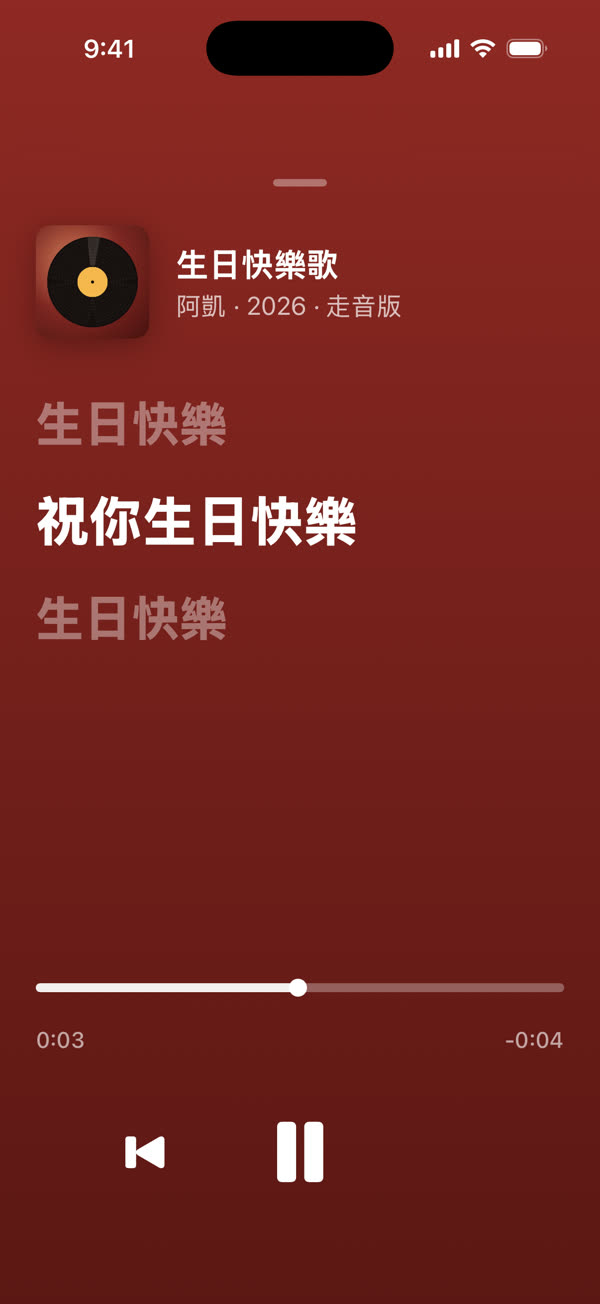
After filling in each page, tap "Preview" in the top right corner to see exactly what they'll see.
Step 5: Preview the whole card and get the code
Once every page is filled in, tap "Preview the whole card" to go through it from start to finish; at the end of the last page, you can get the code. If the card name or "From" is empty, or a page isn't finished, the button stays grayed out and tells you what's missing.
Payment is an App Store in-app purchase. Once you get the code, the content can't be changed, so preview it one more time before this step.
Step 6: Send the birthday e-card
Once you have the code, tap "Send to them" and send the link through Messages, WhatsApp, or any chat app, and you're done. You can also copy the link, or let them scan a QR code.
When they tap the link on an iPhone, it opens Surprise's App Clip, a small part of the app that works without downloading the full app (Apple's guide: Use App Clips on iPhone). So on their end:
- Tapping the link on an iPhone opens the card right away, with no app to download and no sign-in.
- Before the opening time, they'll see an envelope and a countdown.
- Android phones and computers can't open it, so check that they have an iPhone (iOS 17.6 or later) before you send it.
The code is the key to the card. Send it just to them, and don't post it anywhere public.
FAQ
- Does the person receiving a birthday e-card need to download an app first?
- No. When they tap the card link or scan the QR code on an iPhone, the card opens right away in Surprise's App Clip, a lightweight version of the app, so they don't need to download Surprise or sign in.
- Can a Surprise birthday e-card be opened on an Android phone or a computer?
- No. Surprise cards can currently only be viewed on an iPhone running iOS 17.6 or later; on an Android phone or a computer, the link only shows an information page, so ask them to scan the QR code on that page with an iPhone.
- Does it cost anything to make a birthday e-card with Surprise?
- Making the card, filling in the content, and previewing the whole card are all free; you only pay when you get the code to send the card, through an App Store in-app purchase.
- Can I set a birthday e-card so it only opens at midnight on their birthday?
- Yes. In the Surprise editor, turn on "Opens only after a set time" and pick a date and time; until then, they'll see an envelope and a countdown, and the card opens once the time arrives.
- Can I change a birthday e-card after I've sent it?
- No, the content is locked once you get the code. Before you send it, tap "Preview the whole card" and watch it from start to finish.
- How many pages can a birthday e-card have?
- At least 2 and at most 8, in any order you like. Most pages ask the recipient to do something, so too many gets tiring; 4 to 5 pages is usually just right for a birthday card.
Make your own animated card
Pick pages, add photos, record your voice. When it’s done you get a code, and they enter it to open the card.
Download on the App StoreMore posts
What Is Surprise? An iPhone App for Making Animated E-Cards by Hand
Surprise is an iPhone app for picking pages, adding your photos and your own voice, and making an e-card they have to unwrap with their own hands. When it's done you get a code, and they can open it without downloading anything. Here's how it works, what it costs, and what to know before you send one.
How to Plan a Long-Distance Birthday Surprise: 9 Ideas to Make Your Partner Feel Loved from Miles Away
You can't be there, but you can still surprise them: 9 long-distance birthday surprise and gift ideas, how to handle time zones, and a step-by-step birthday timeline you can follow.