What Is Surprise? An iPhone App for Making Animated E-Cards by Hand
Surprise is an iPhone app for picking pages, adding your photos and your own voice, and making an e-card they have to unwrap with their own hands. When it's done you get a code, and they can open it without downloading anything. Here's how it works, what it costs, and what to know before you send one.
Some things are hard to say face to face, and a text message feels too light.
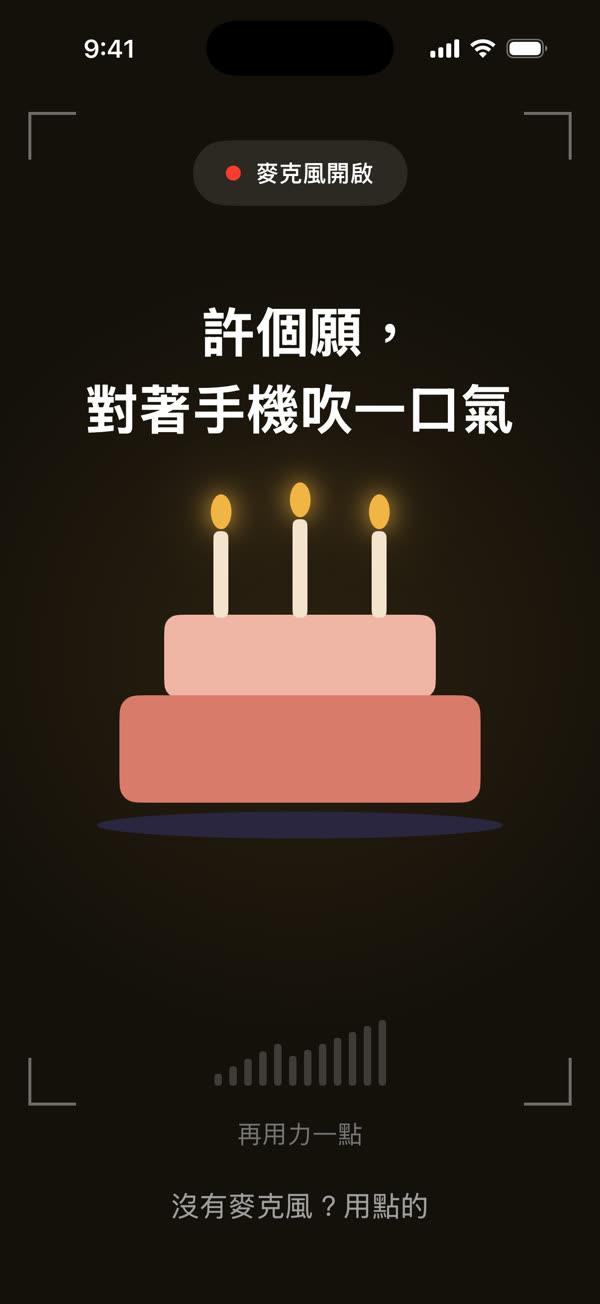
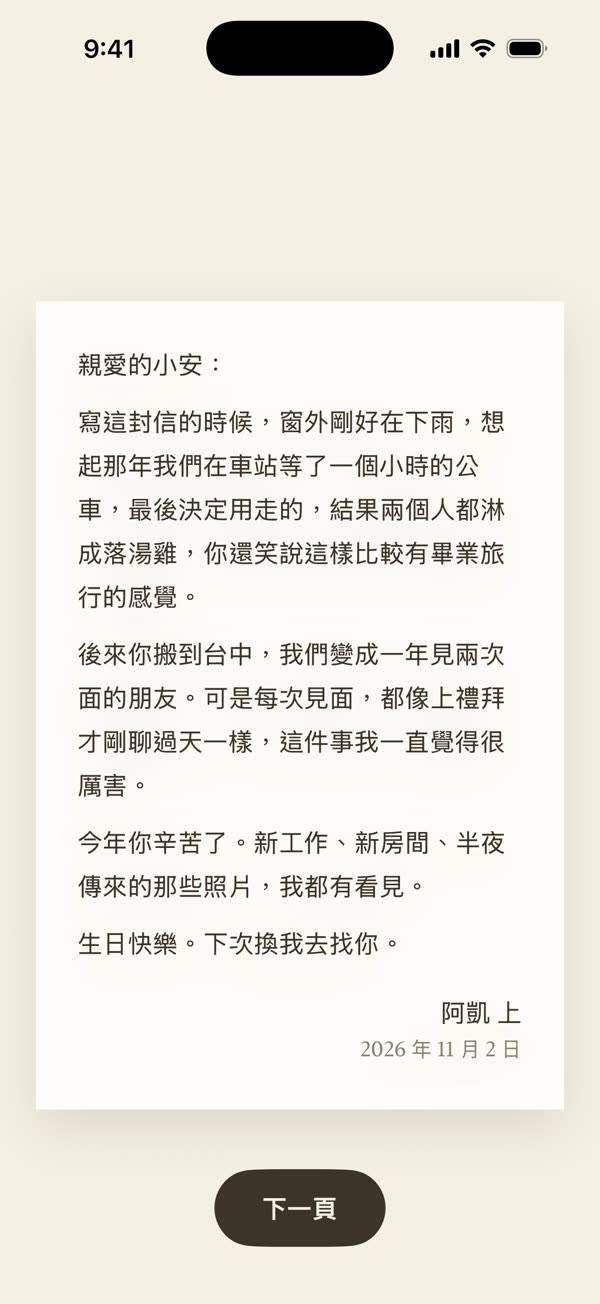
Surprise is an iPhone app for making an animated e-card and sending it to someone. You pick the pages and add your photos, your friends' words and your own voice, and when it's done you get a six-character code. They open the card on their iPhone, and they have to blow out the candles, scratch off the silver, and hold the seal to open the letter before they get to read what you wanted to say.
This post goes through it from the start: what the person receiving a card sees, what you do to make one, what it costs, and what to know before you send.
What Surprise is
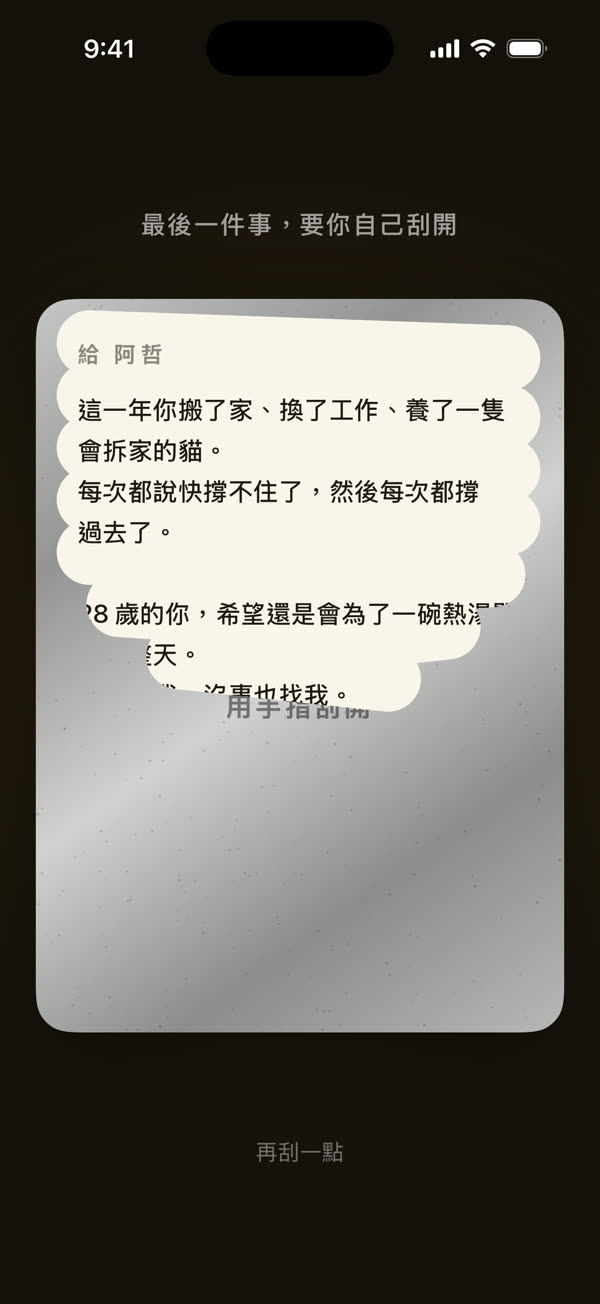
It isn't a template you drop a picture into, and it isn't a video. A card is made of several pages, and each one asks them to do one small thing before the next appears. They blow on the phone to put out the candles, scratch off the last line with a finger, and on the Music page they hear a song you sang yourself, with the lyrics lighting up line by line.
You decide everything in it. You pick pages from the page store, add your photos and what you want to say, and set the order. When it's done there's no file to send, just the code or a link.
What the person receiving it sees
You can send the link through Messages or any chat app, or give them a QR code or the six-character code.
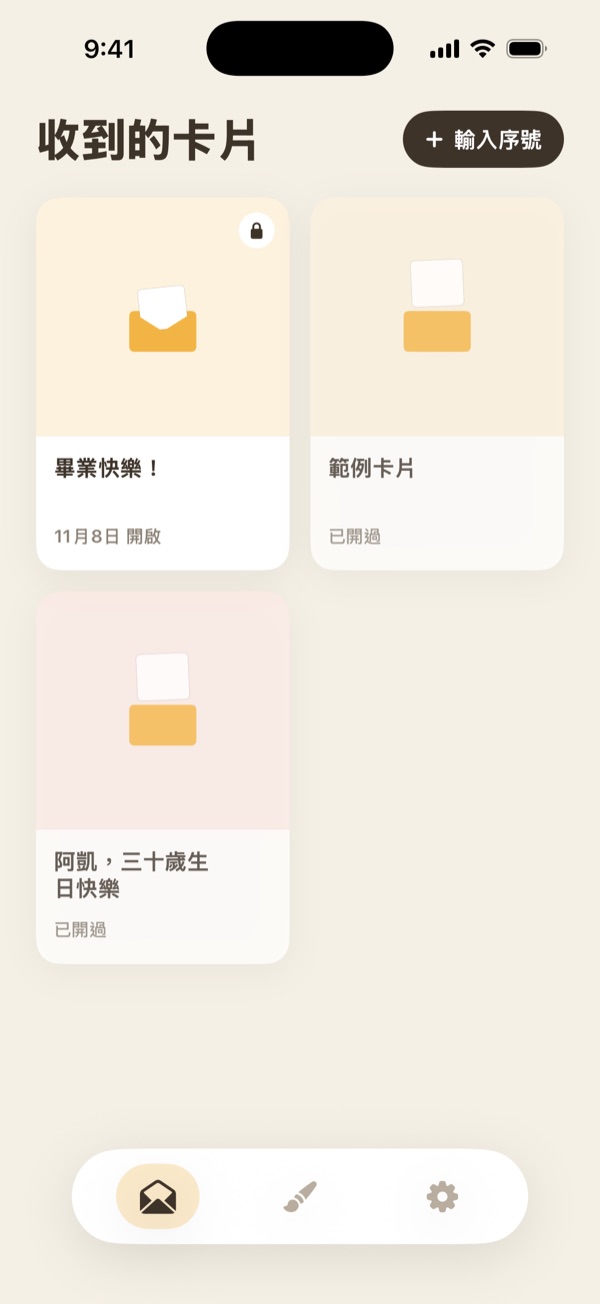
When they tap the link on an iPhone, the card opens right away, with no app to download and no sign-in. That's Apple's App Clip, a small part of an app that works the moment you tap (Apple's guide). If they'd like to keep it, they can also download Surprise and enter the code, and the card is kept under Received.
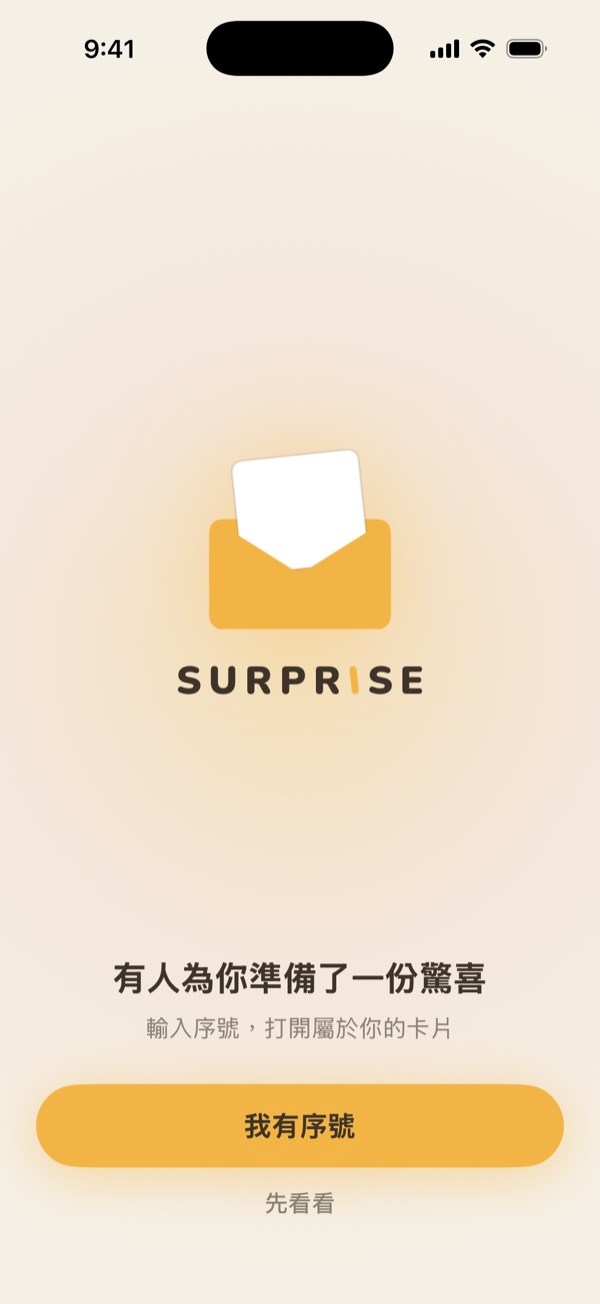
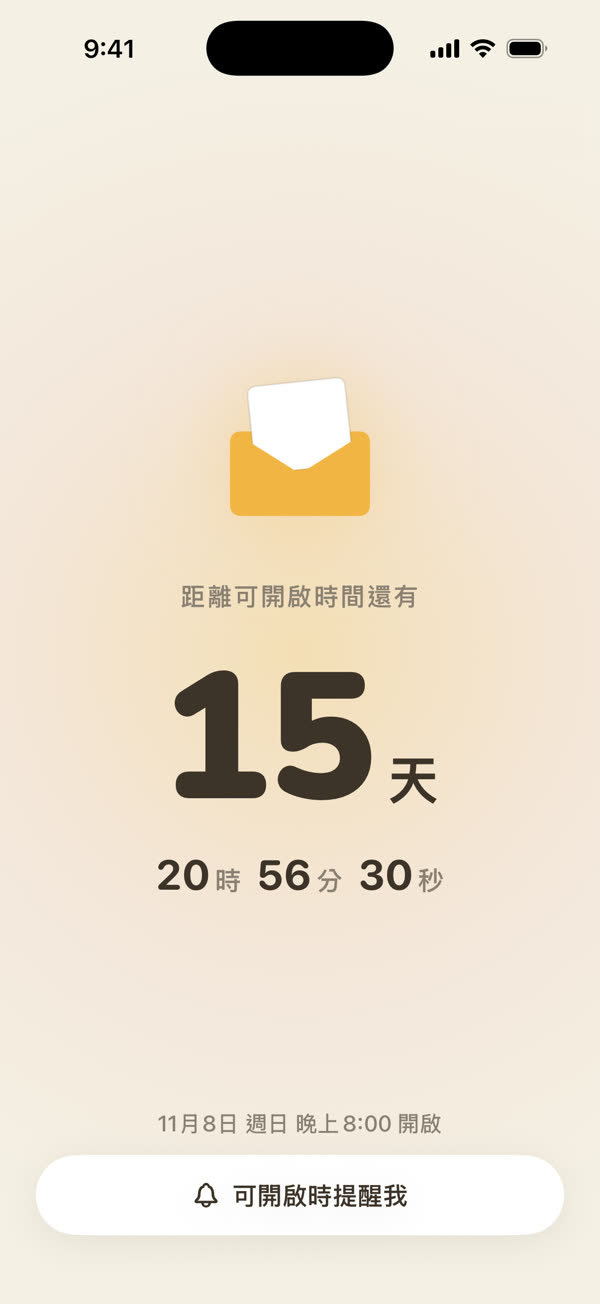
If you set an opening time, until then they see only an envelope and a countdown. When the time comes, the envelope opens and the card slides out, and they go through it page by page, finishing each one before the next. After that, they can watch it again for as long as the plan you chose allows.
All they need is an iPhone running iOS 17.6 or later. Android phones and computers can't open it right now. The link only shows an information page and a QR code, so check that they have an iPhone before you send it.
What you do to make a card
It takes about 15 to 30 minutes, and most of that is choosing photos and deciding what to write.
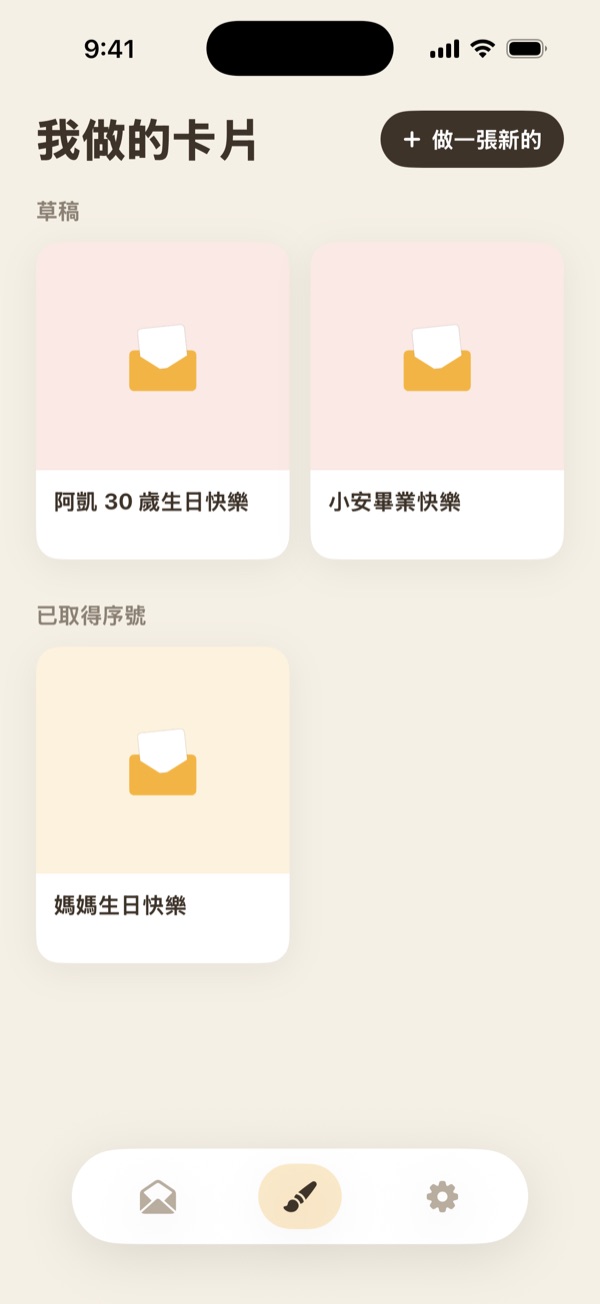
Start in the Studio and tap "New card". Fill in the card name and your name, which are the first things they see when they open it. You sign in with Apple or Google to make cards, and your drafts stay on your phone, so you can close the app halfway and come back.
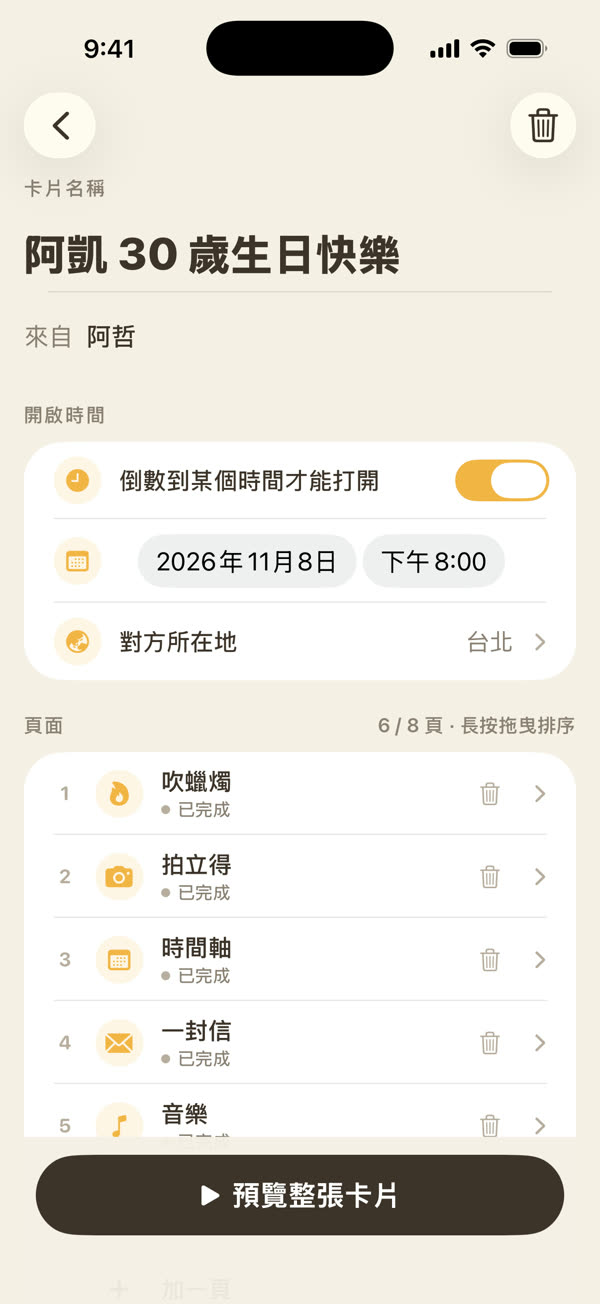
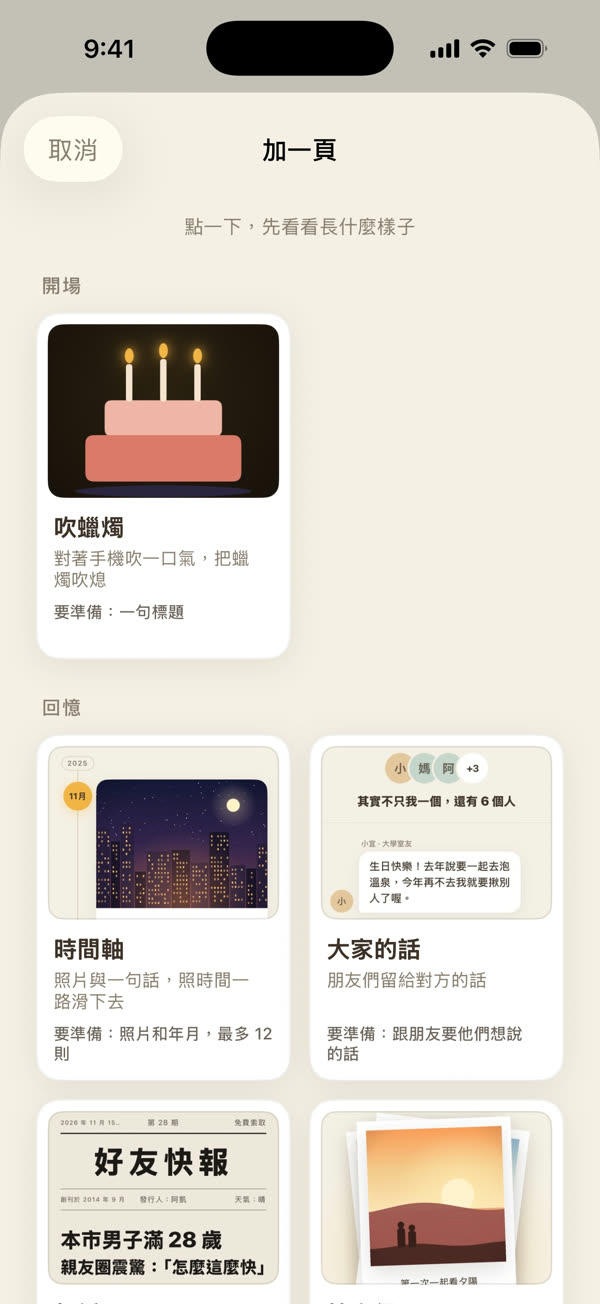
Then tap "Add a page" to open the page store. You can tap any page to see how it looks before you add it. A card has at least 2 pages and at most 8, and you can preview after filling in each one.
When everything's filled in, tap "Preview the whole card" and go through it from start to finish. Only when you're happy do you get the code, and that's the step where you pay. Then send it as a link, a QR code, or the code itself.
For a closer look at each step, see "How to Make a Birthday E-Card: An Animated Birthday Card Made on Your Phone (Step by Step)", which makes a birthday card from start to finish.
What pages there are
There's no fixed order. Use whichever pages you like, in whatever order. These are the pages there are now:
| Page | What they do | What you put in |
|---|---|---|
| Blow out the candles | Blow on the phone (tap instead if there's no microphone) | The opening, making a wish |
| Timeline | Scroll down | A photo and a line for each moment, up to 12, sorted by month and year |
| Messages from everyone | Read down the page | What friends want to tell them, up to 7 people |
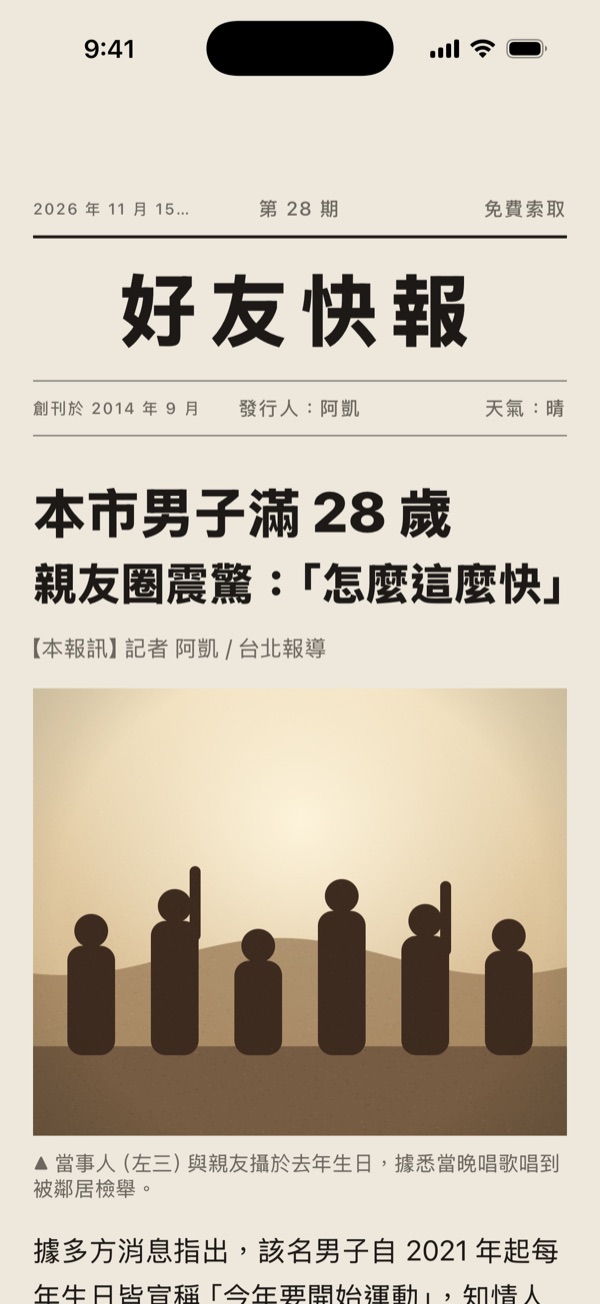
| Newspaper | Read a daily paper with them as the headline | The headline, photos and story, all written by you |
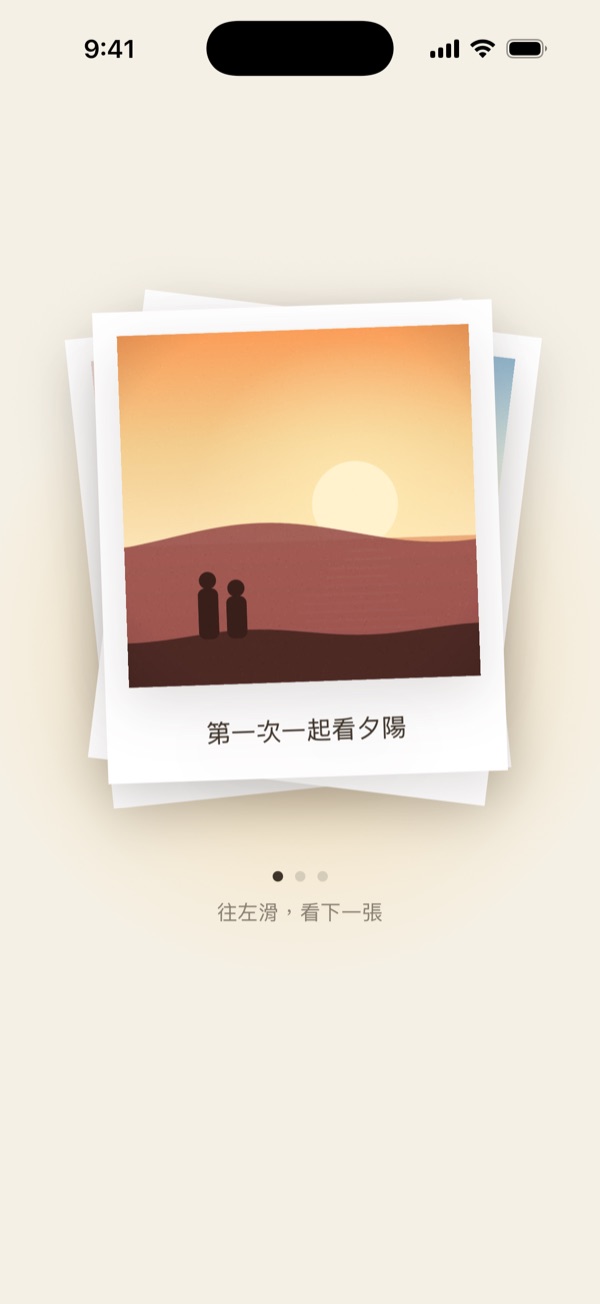
| Polaroids | Shake the phone so the photos slowly develop | A few photos, each with a line |
| Music | Tap play | A song you record in the app (up to 30 seconds), with the lyrics lighting up |
| Letter | Hold the wax seal to open it, then pull down to read | Something longer you want to say |
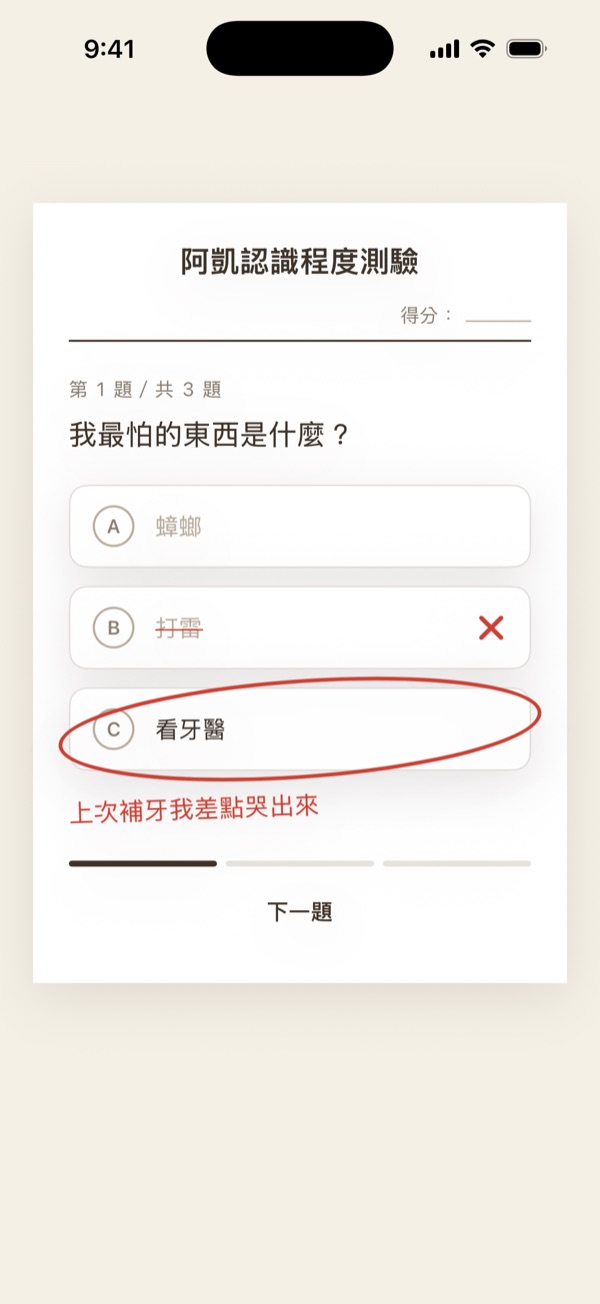
| Quiz | Answer the multiple-choice questions you wrote | A small test of how well they know you |
| Coupons | Pull down to tear off one coupon at a time | Coupons like "Do the dishes once" or "A movie together" |
| Scratch card | Scratch off the silver layer with a finger | The ending, the line that matters most |
Seasonal pages
For the holidays there are three more:
| Page | What they do |
|---|---|
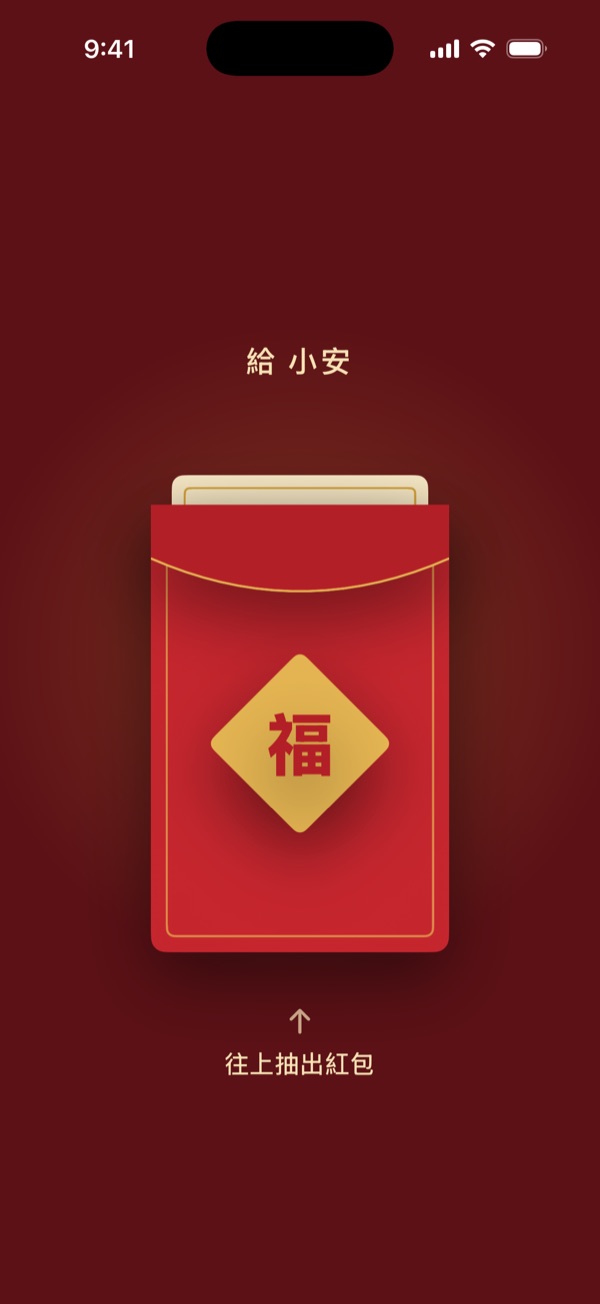
| New Year red envelope | Pull the red envelope up and read the wish you wrote inside |
| Christmas tree | Place the star on top to light the whole tree, and find your card in the gift |
| Valentine's heartbeat | Hold a thumb on the heart and feel the phone beat along with it |
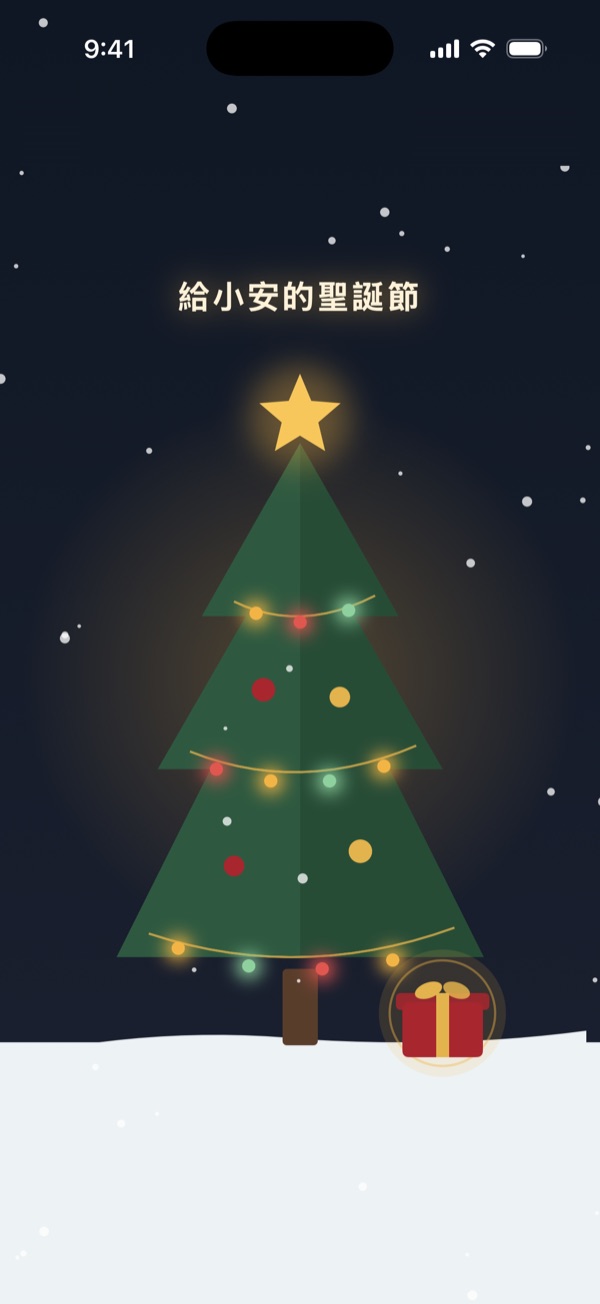
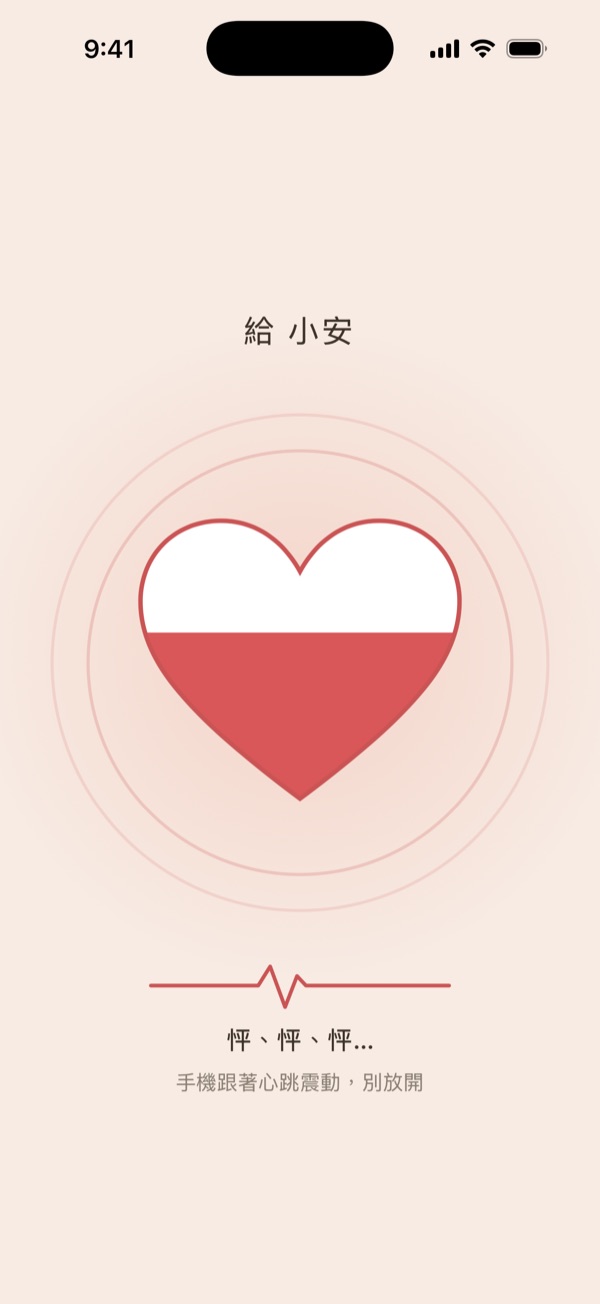
More will be added over time. If you can't decide, just tap through the pages in the page store.
Setting an opening time
When making a card, turn on "Opens only after a set time" and pick a date and time. If they live in another city or country, choose their city under "Their location", and the time follows their clock, so you don't have to work out the time difference.
Until then, tapping the link shows them only an envelope and a countdown, so they can't peek at what's inside. They can tap "Remind me when it opens" to get a notification when it's ready. If you want it to arrive at midnight on their birthday, send it a few days early and let them wait.
What it costs
Downloading the app, making a card, and previewing it are all free. You pay only when you get the code to send the card, through an App Store in-app purchase, once per card. The person receiving it never pays.
When you pay, you choose a plan. The plan decides two things: how long the card can be viewed from the first time they open it, and how many phones can open it. There are shorter and longer plans, prices depend on your App Store region, and the payment screen spells it all out, so you can look it over before you decide.
When to send one
Birthdays, anniversaries, graduation, thank you, I'm sorry, long time no see, before a goodbye, missing you, you've got this. Anytime there's something you want someone to know, you can make one.
For ideas, see "How to Plan a Long-Distance Birthday Surprise: 9 Ideas to Make Your Partner Feel Loved from Miles Away". When they're far away and you can't hand it over in person, a card that opens right on time works well.
Before you send
- You can't change the card after you get the code. To change it you'd have to make a new one, so always preview first.
- The code is the key to the card. Send it only to them, and don't post it anywhere public.
- Your plan decides how long the card can be viewed and on how many phones. On plans with a time limit, if no one opens the card within 90 days of when it first could be opened, it expires, so remind them after you send it.
How to get started
Search for "Surprise" on the App Store to download it (go straight to the App Store); you'll need an iPhone running iOS 17.6 or later. Open it, go to the Studio, tap "New card", and sign in with Apple or Google to begin.
If it's your first time, try "Use the classic set" first. It adds four pages at once (Candles, Timeline, Messages from everyone, and Scratch card), and you can add or remove pages from there.
FAQ
- What is Surprise?
- Surprise is an iPhone app for making animated e-cards by hand. You pick pages from the page store, like blowing out candles, a timeline, a scratch card, or a letter, add your photos, your friends' words and your voice, and when it's done you get a six-character code to send them.
- Does the person receiving the card need to download Surprise first?
- No. When they tap the card link or scan the QR code on an iPhone, the card opens right away in an App Clip, a lightweight version of the app, so there's nothing to download and no sign-in.
- Can it be opened on an Android phone or a computer?
- No. Surprise cards can currently only be viewed on an iPhone running iOS 17.6 or later. On an Android phone or a computer, the link only shows an information page with a QR code, so ask them to scan it with an iPhone.
- Does Surprise cost anything?
- Downloading the app, making a card, filling in the content, and previewing the whole card are all free. You only pay when you get the code to send the card, through an App Store in-app purchase, once per card. The person receiving it never pays.
- Can I choose when the card can be opened?
- Yes. Set an opening time, and you can also choose the city they live in so the time follows their clock. Until then they see an envelope and a countdown, and the card opens once the time arrives.
- Can I change the card after I've sent it?
- No. The content is locked once you get the code, so before you send it, tap "Preview the whole card" and watch it from start to finish.
- How many pages can a card have, and what kinds of pages are there?
- { "At least 2 and at most 8, in any order you like": { " The pages are Blow out the candles, Timeline, Messages from everyone, Newspaper, Polaroids, Music, Letter, Quiz, Coupons, and Scratch card, plus three seasonal pages": "a New Year red envelope, a Christmas tree, and a Valentine's heartbeat." } }
Make your own animated card
Pick pages, add photos, record your voice. When it’s done you get a code, and they enter it to open the card.
Download on the App StoreMore posts
How to Make a Birthday E-Card: An Animated Birthday Card Made on Your Phone (Step by Step)
Make an animated birthday e-card on your phone: they blow out the candles, scratch off your last line, and hear you sing Happy Birthday. 6 steps with app screenshots, and they open it on an iPhone with one tap.
How to Plan a Long-Distance Birthday Surprise: 9 Ideas to Make Your Partner Feel Loved from Miles Away
You can't be there, but you can still surprise them: 9 long-distance birthday surprise and gift ideas, how to handle time zones, and a step-by-step birthday timeline you can follow.